
Step-by-step Guide for How to Use FaceFusion (0 code required)
FaceFusion is an open-source AI model for face swapper & enhancer for images and videos.
Although it's completely free, it still needs coding skills to install and use it.
It's not very user friendly for a person without any coding skills like me.
Therefore, after searching and trying out many tutorials online, I summarize this step-by-step Guide for beginners on how to run FaceFusion on your computer.
No coding skills needed, no need to install python or set up the virtual environment.
Let's get started.
How to Install FaceFusion on your computer without coding?
Instead of visiting the GitHub page of FaceFusion and don't know how to get started, we're going to use Pinokio.
Pinokio is a platform that integrates a vast amount of open-source software. Here, you can freely download and use them:
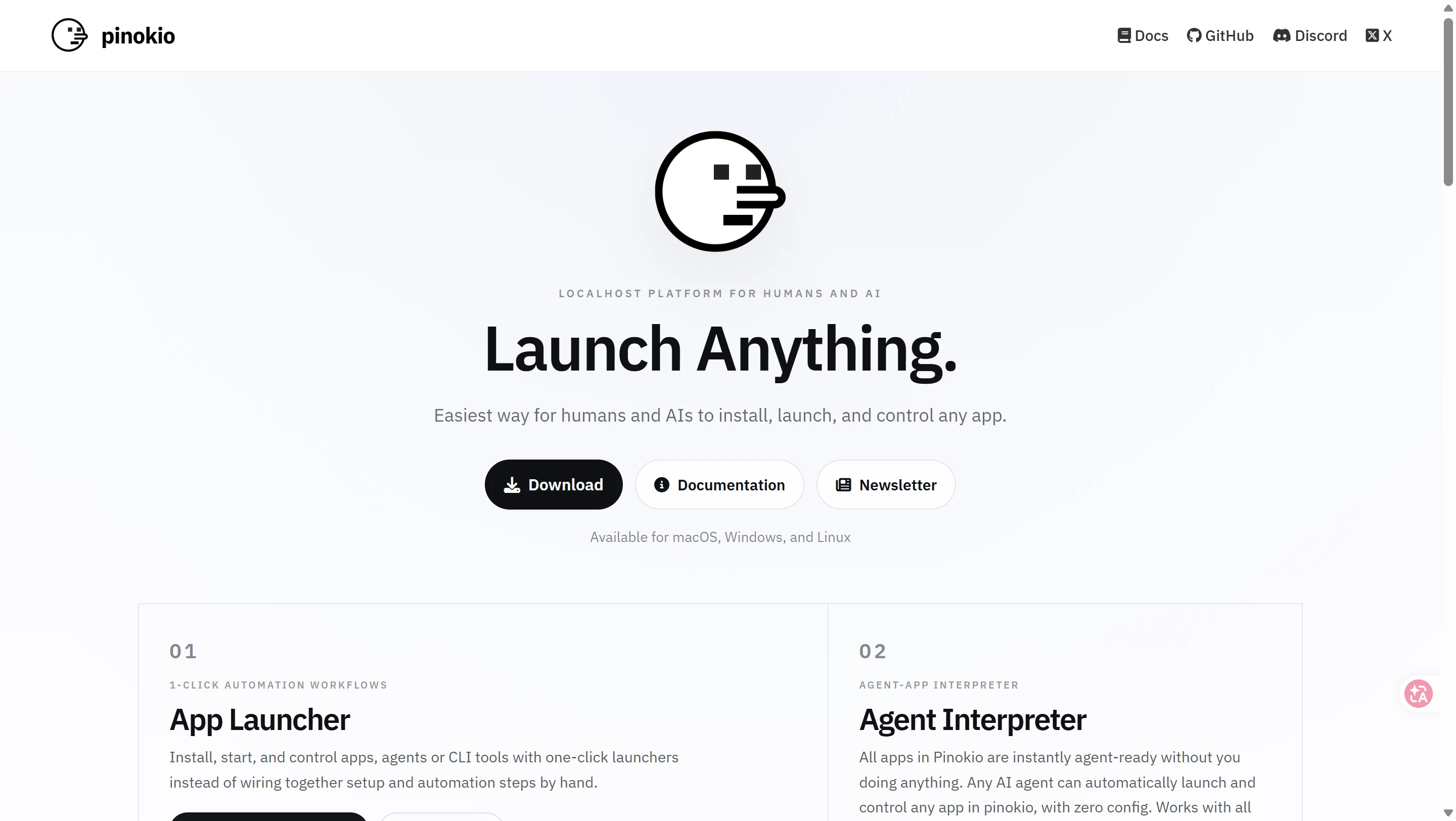
Once the download is complete, proceed with the installation with default settings.
Here is the installation guide on Pinokio:
(1) If it is your first time to install FaceFusion:
Open Pinokio, and in the Explore page, search for FaceFusion. Once opened, click on 'install'.
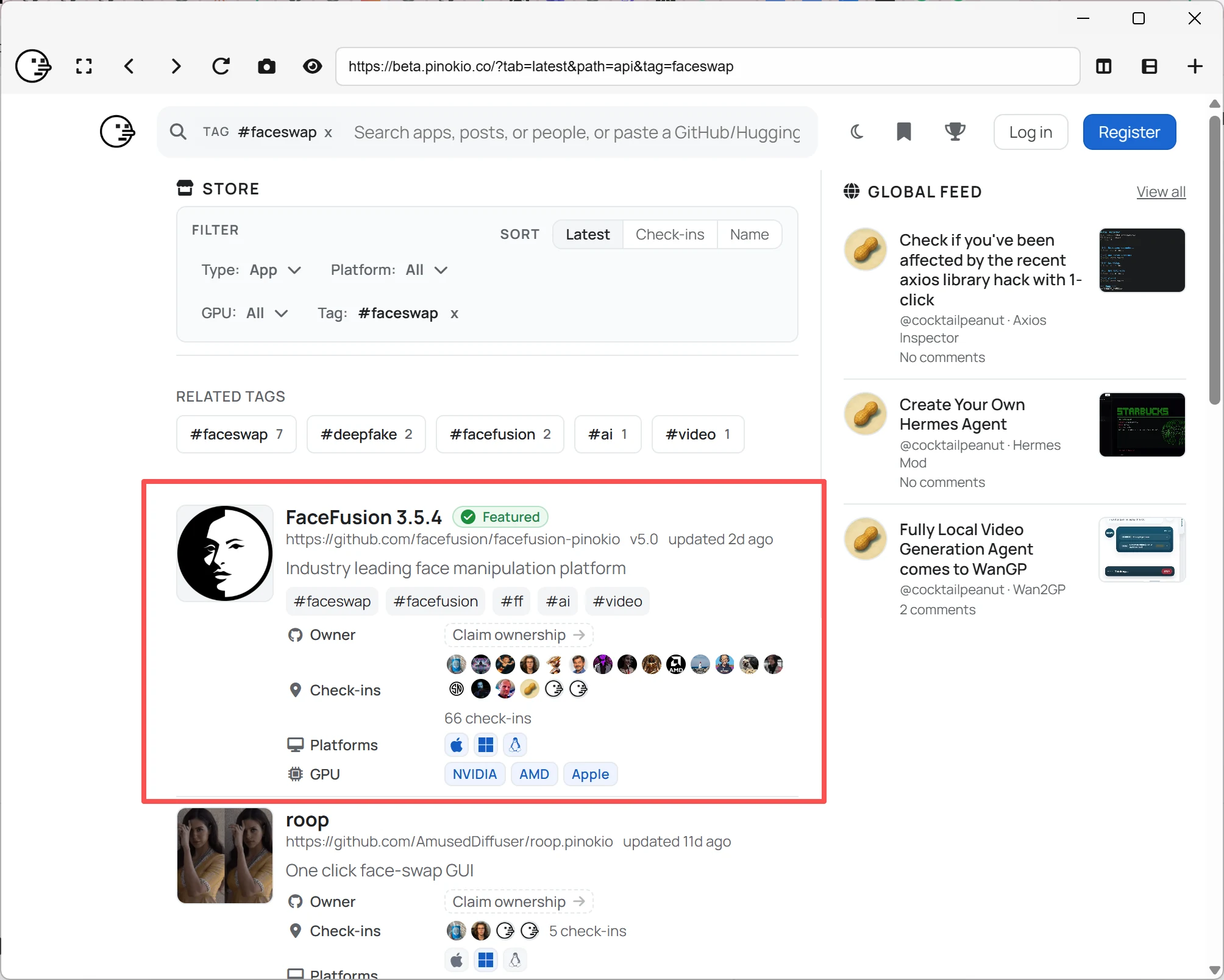
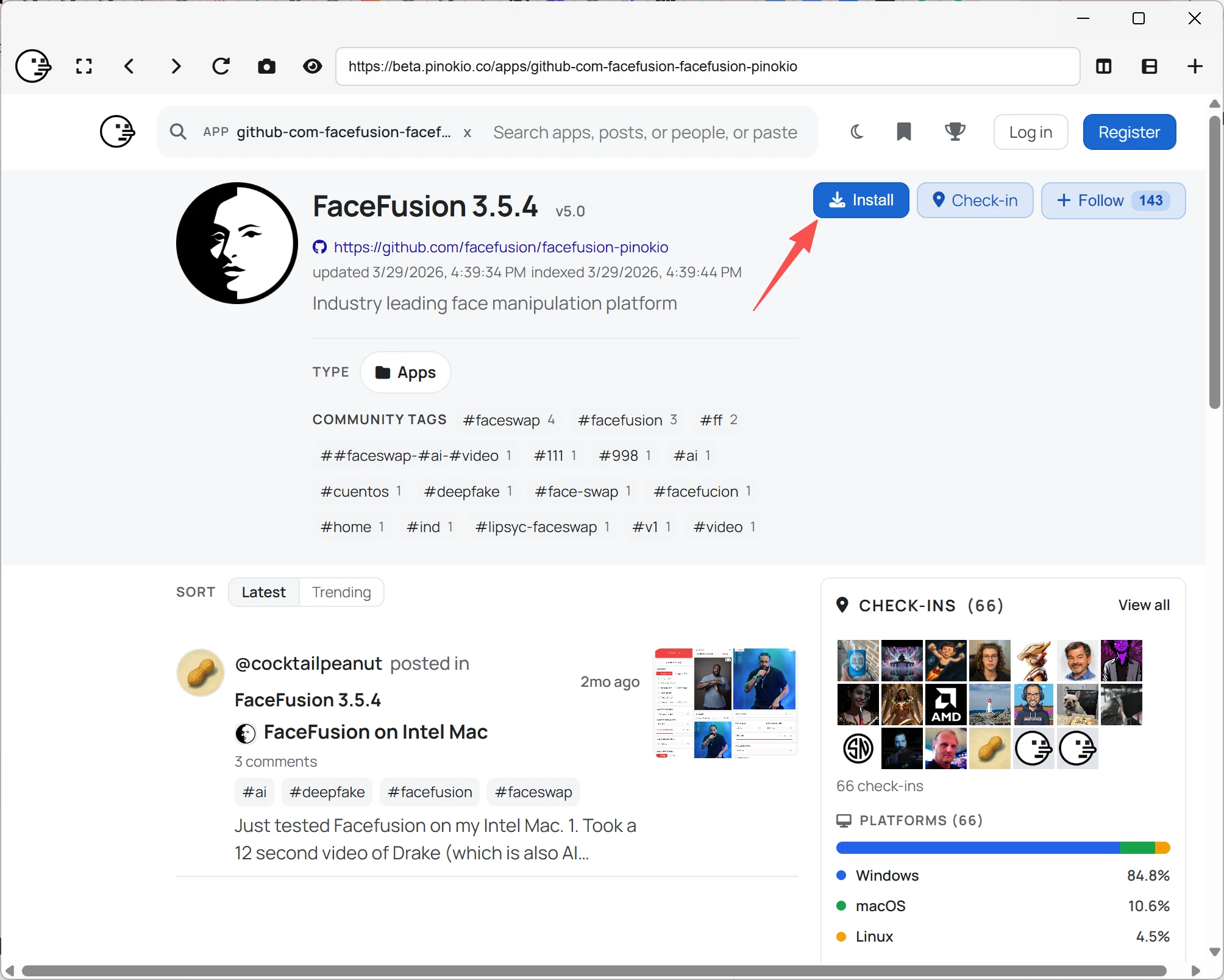
Pinokio is a platform containing multiple AI models where it will help install all the other required packages and environment for running that model.
So, basically you just need to install the AI models like an APP.
After the download is finished, click on the image on the homepage to open it.
Then, click on 'install' on the left side, and you can wait for it to download and install.
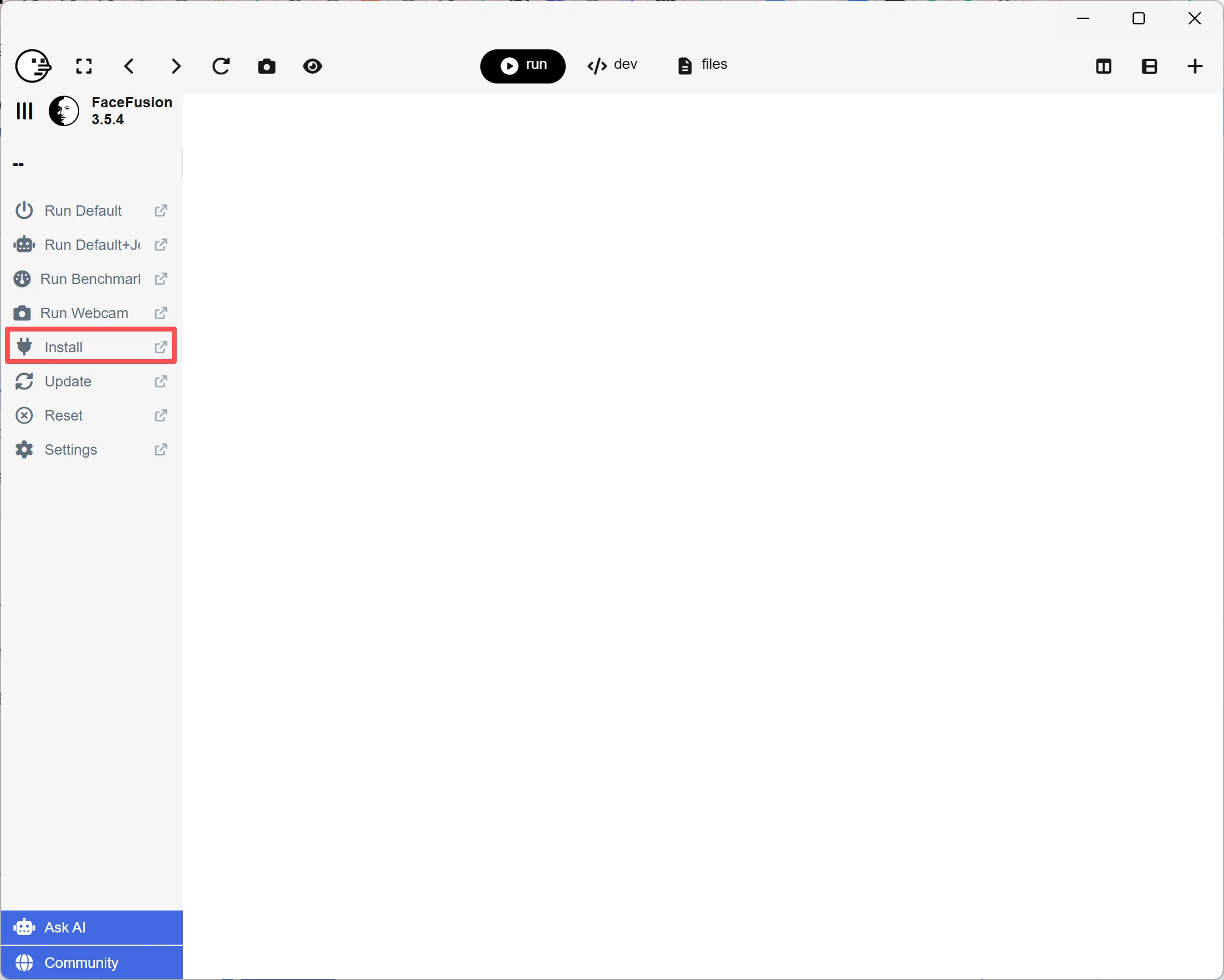
The installation process may take some time, depending on your network and computer configuration. Once the installation is complete, there will be a notification on your interface.
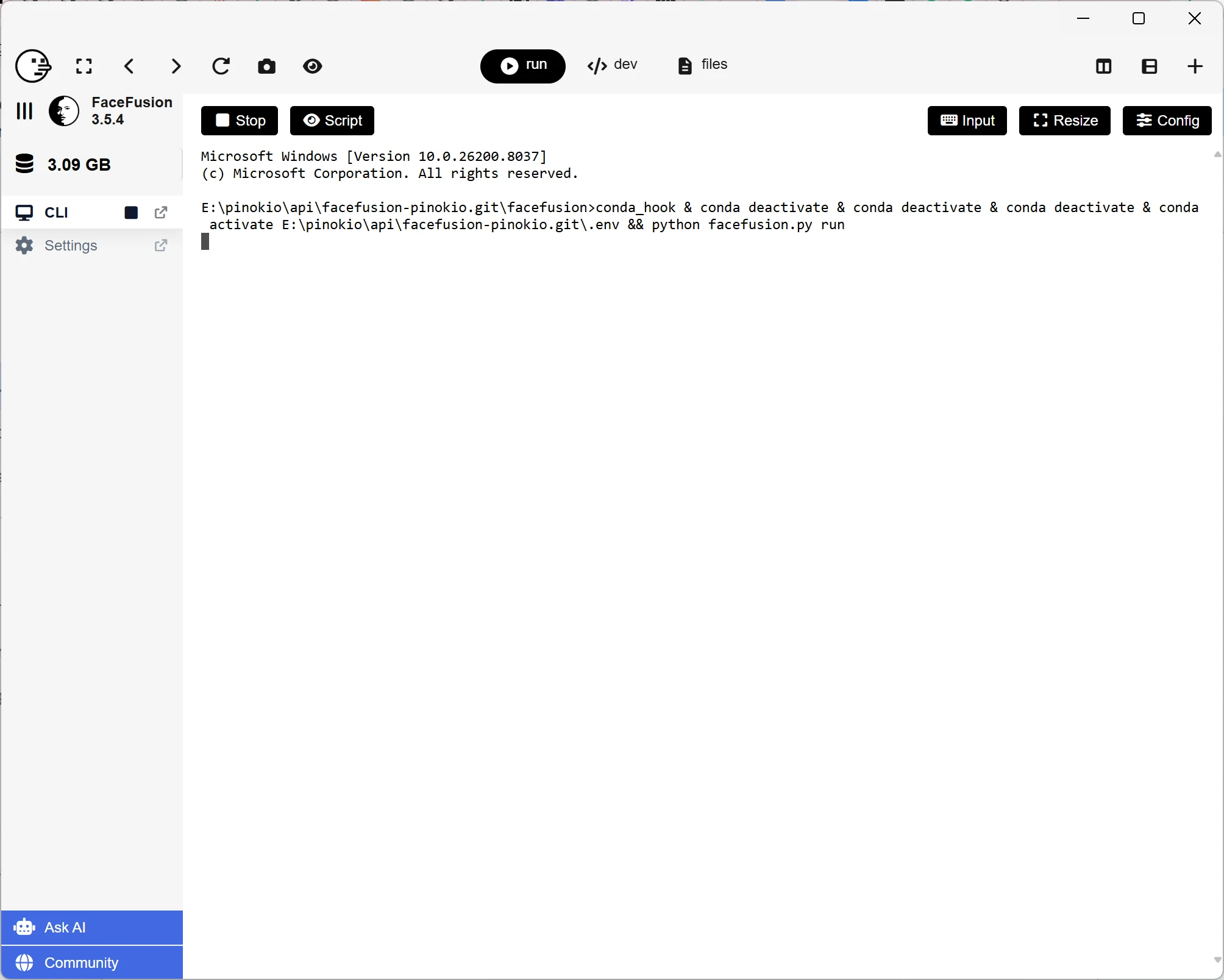
Congratulations on completing the installation! If you are using it for the first time, click on 'launch default', and then wait for further download and initialization.
(2) If you have already installed the previous version of FaceFusion.
Click "update" on the left side of the interface.
Please Note:
I recommend deleting the old version and re-installing new FaceFusion version again. Some people claim that errors might occur by just updating the old version.
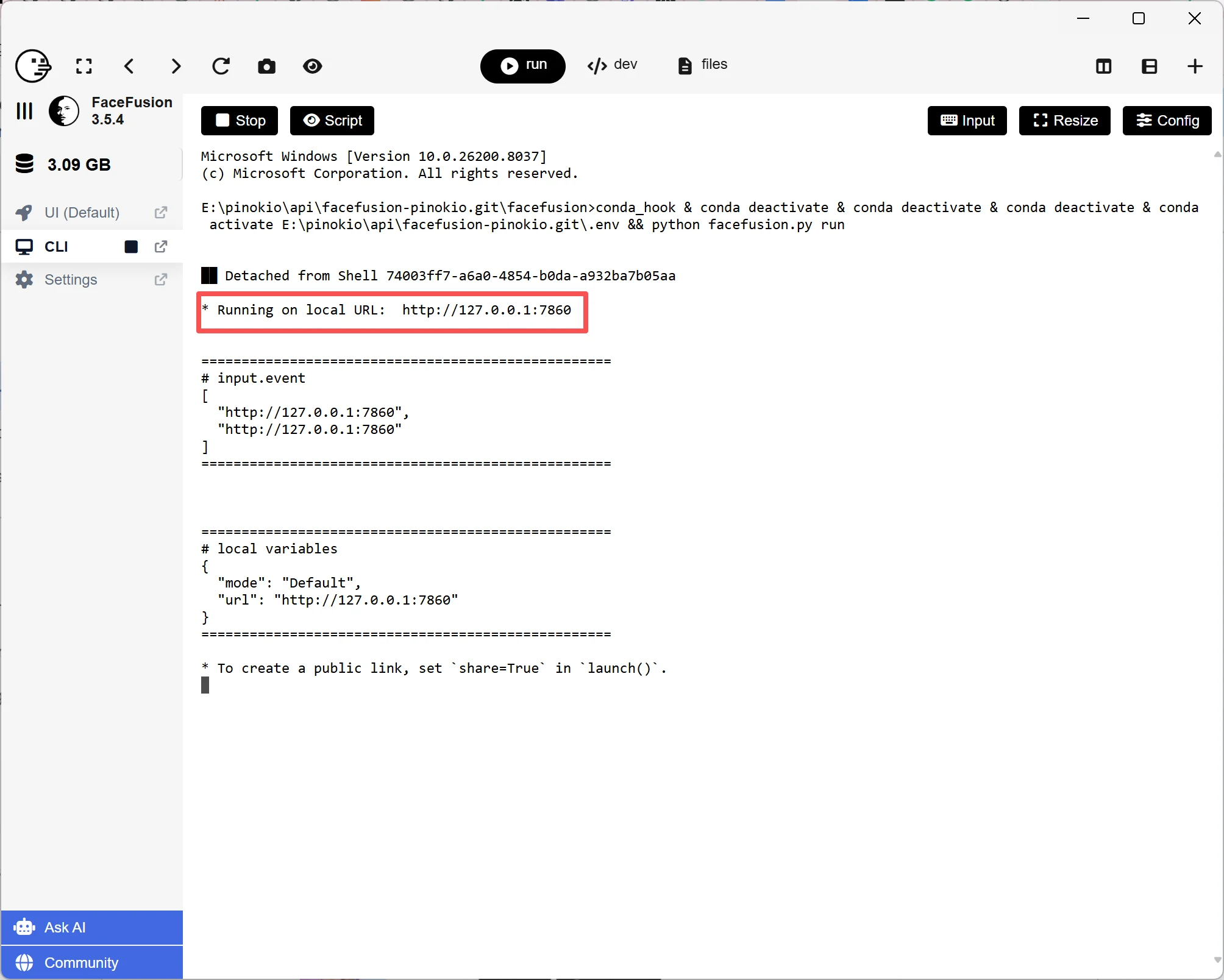
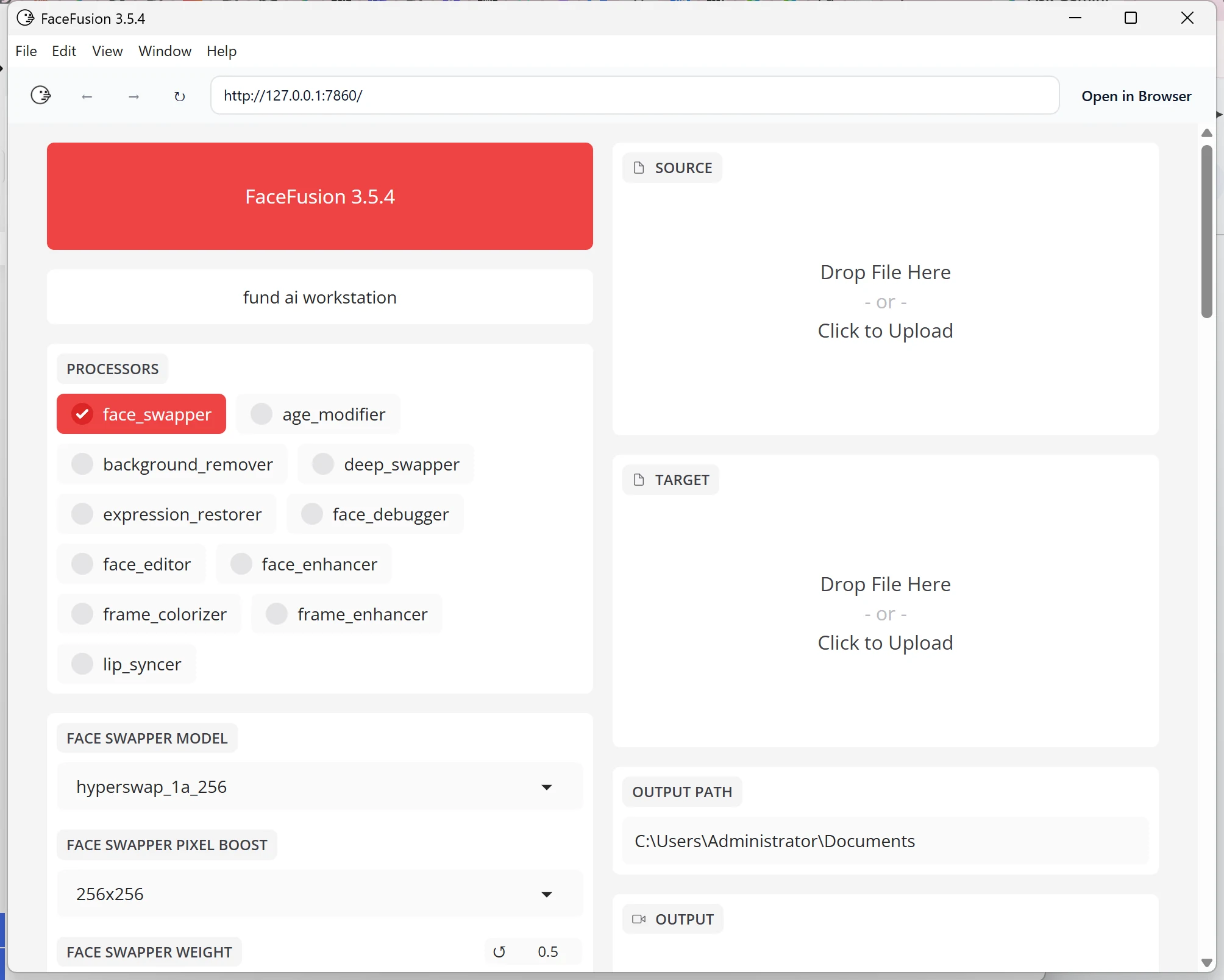
After the initialization is complete, the interface will generate a web link. Clicking on it will take you to the FaceFusion face-swapping page to start face-swapping!
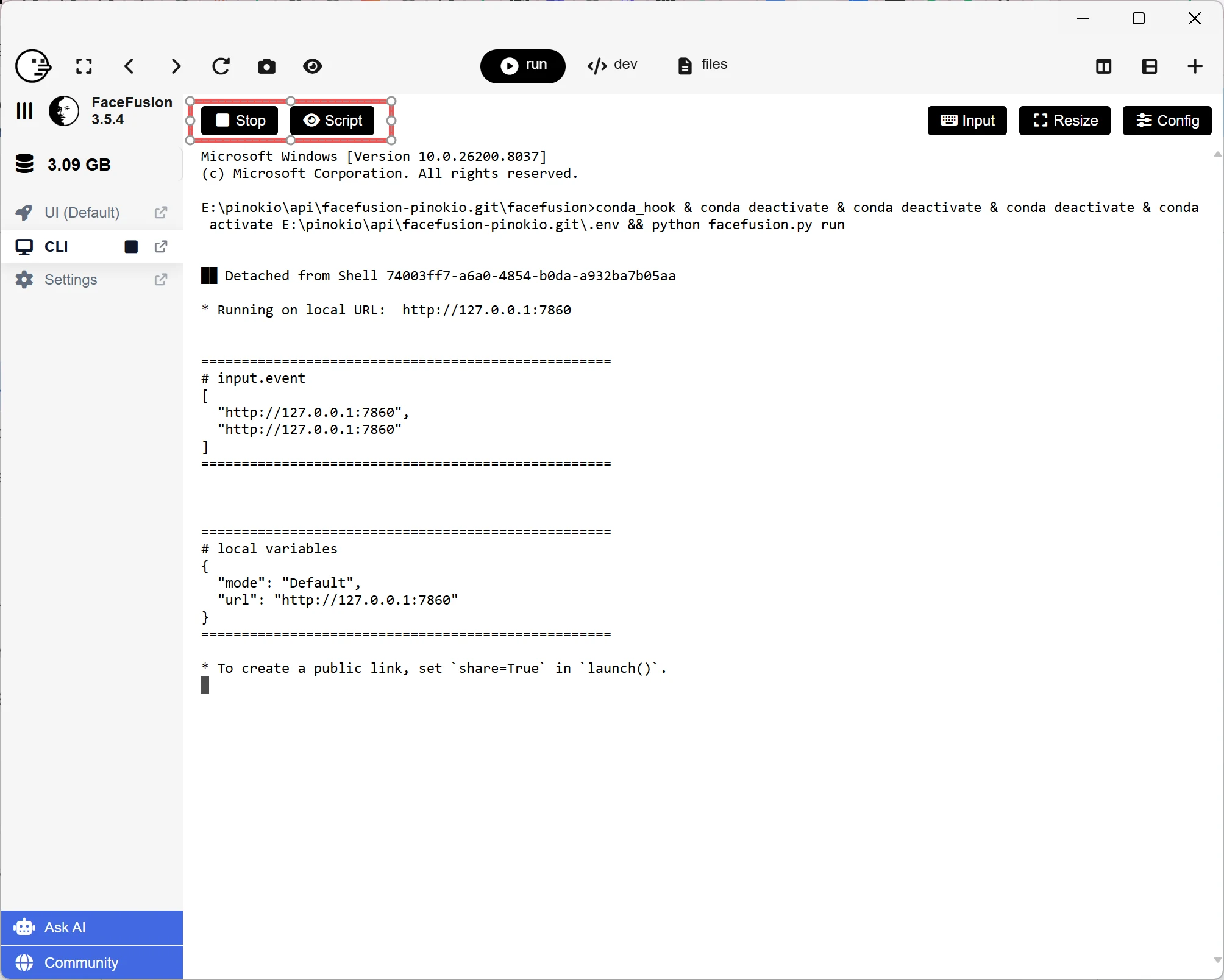
If you want to stop using it, remember to click "Stop" and close the Pinokio app.
How to use FaceFusion? A step-by-step Guide
(1) General Settings to swap faces
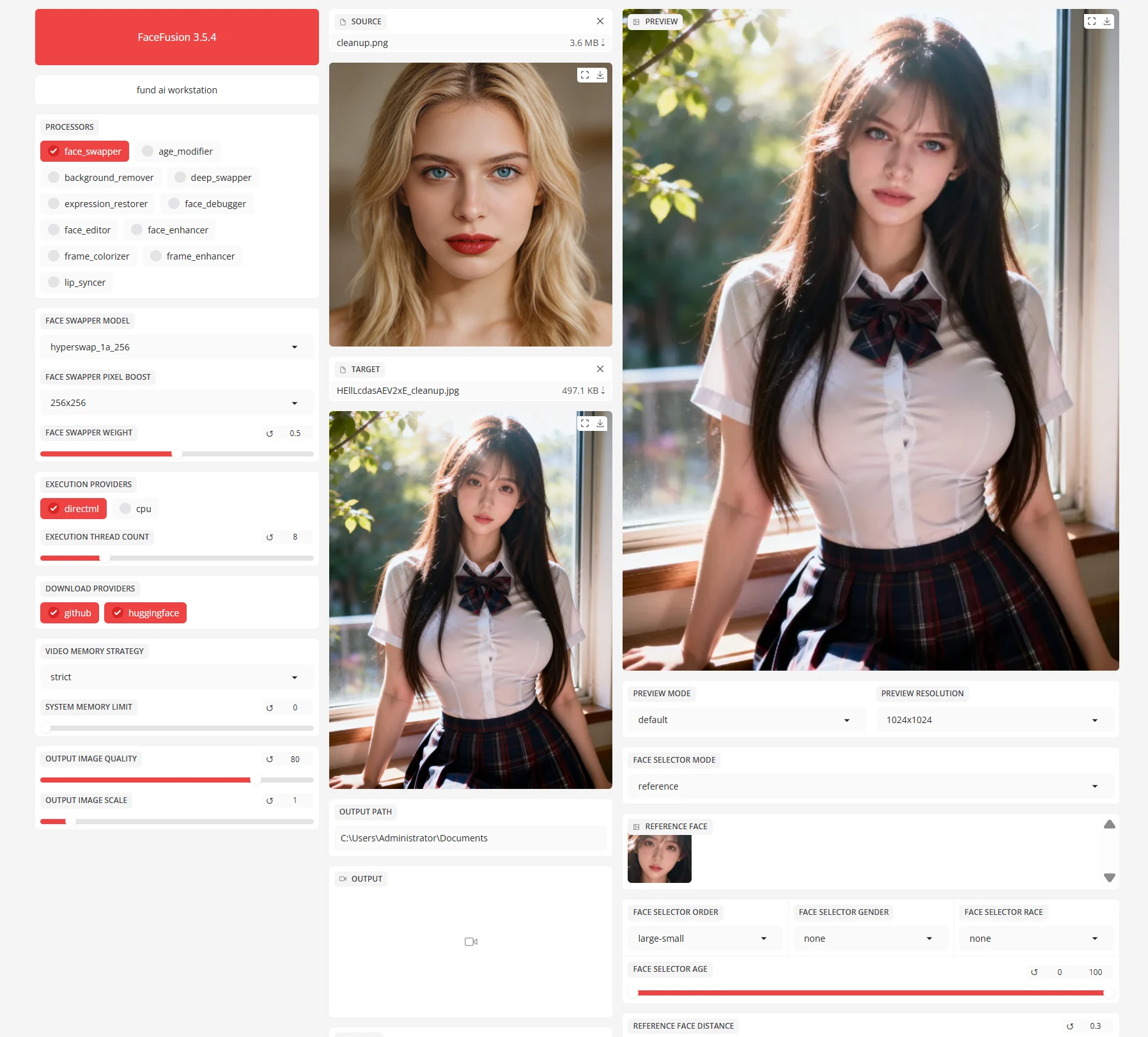
If you're a casual user, you can have a decent face swap without changing any settings. I think the default settings can satisfy the basic needs for casual users.
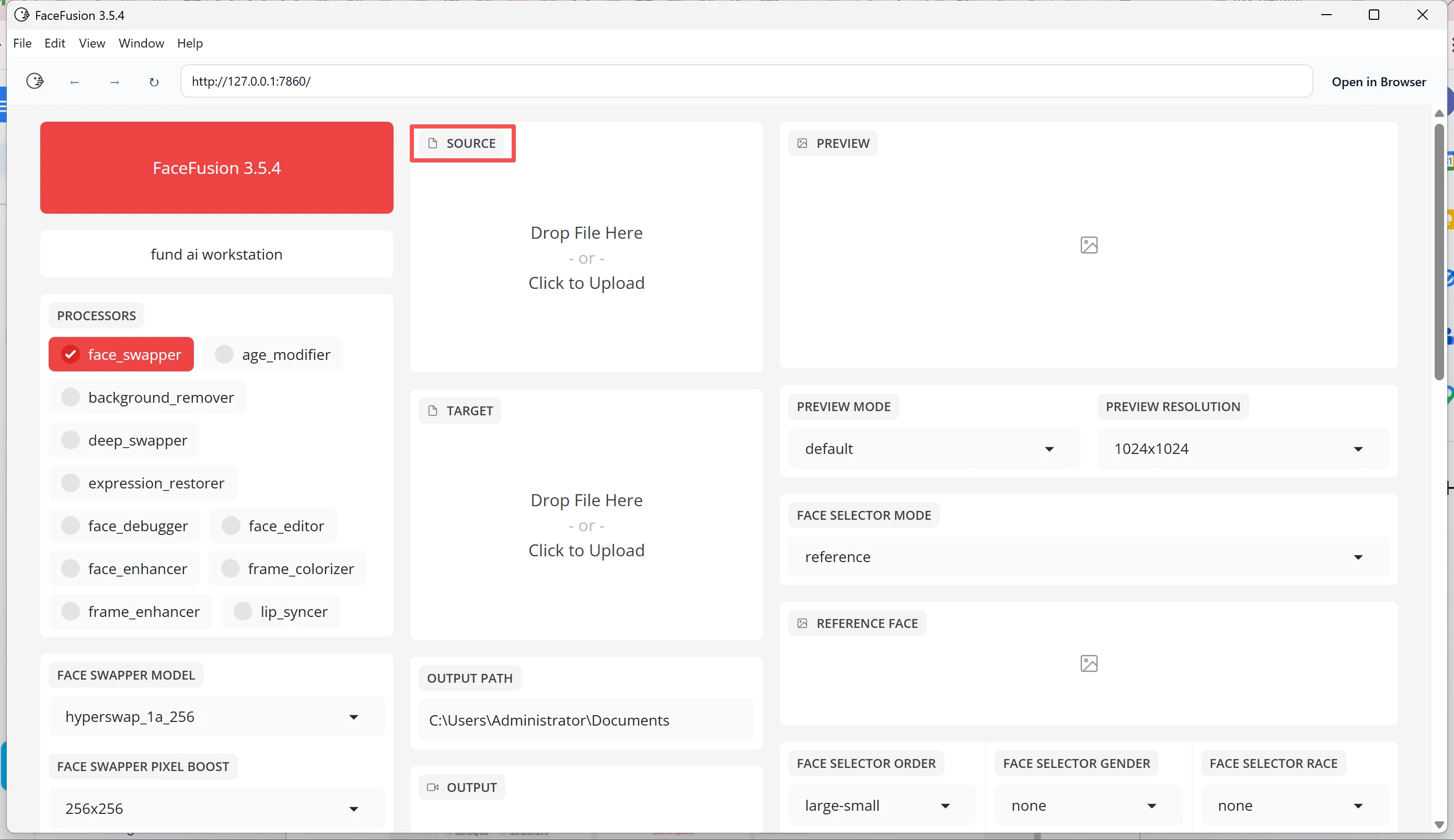
You can upload the source face on the Source section, meaning the photo of the face you want to swap.
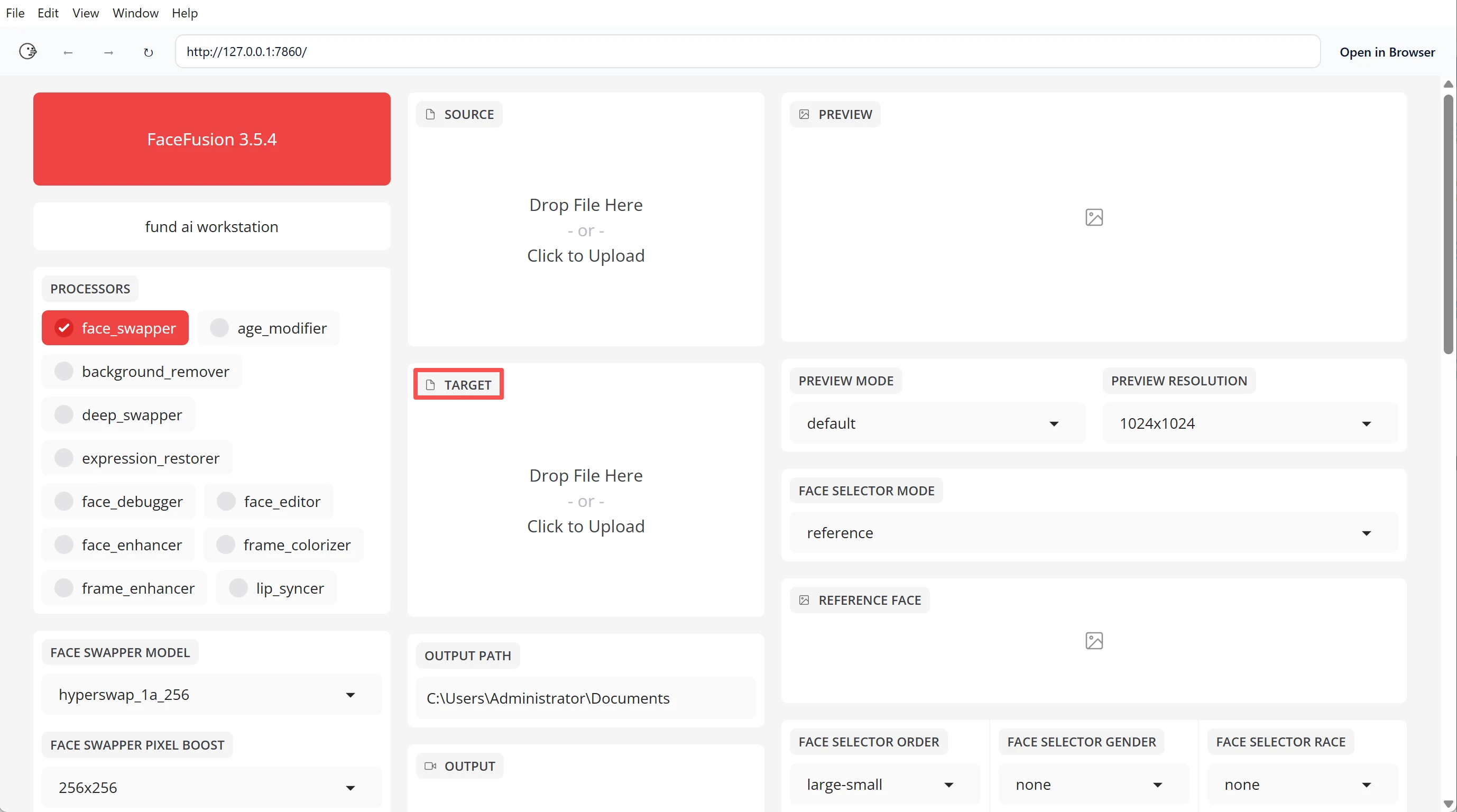
At the Target section, you can upload the original image or video that you want to swap the face.
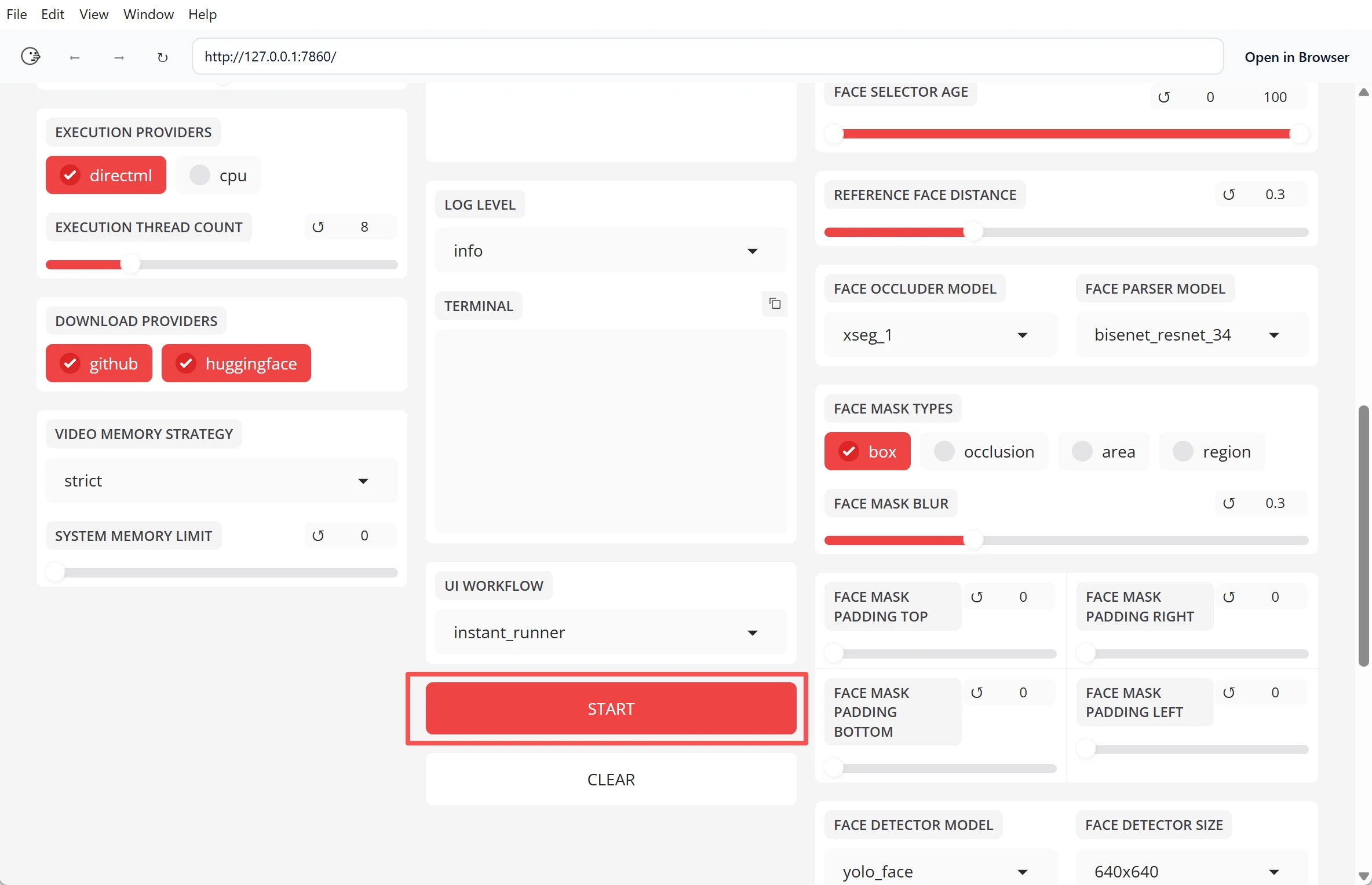
And just click on the Start button, you will be able to download the output once it is finished swapping.
(2) The Preview Settings
But if you want to explore further settings, we can run down some of the main settings together now.
You can check the Preview section to preview the effect of output by frame.
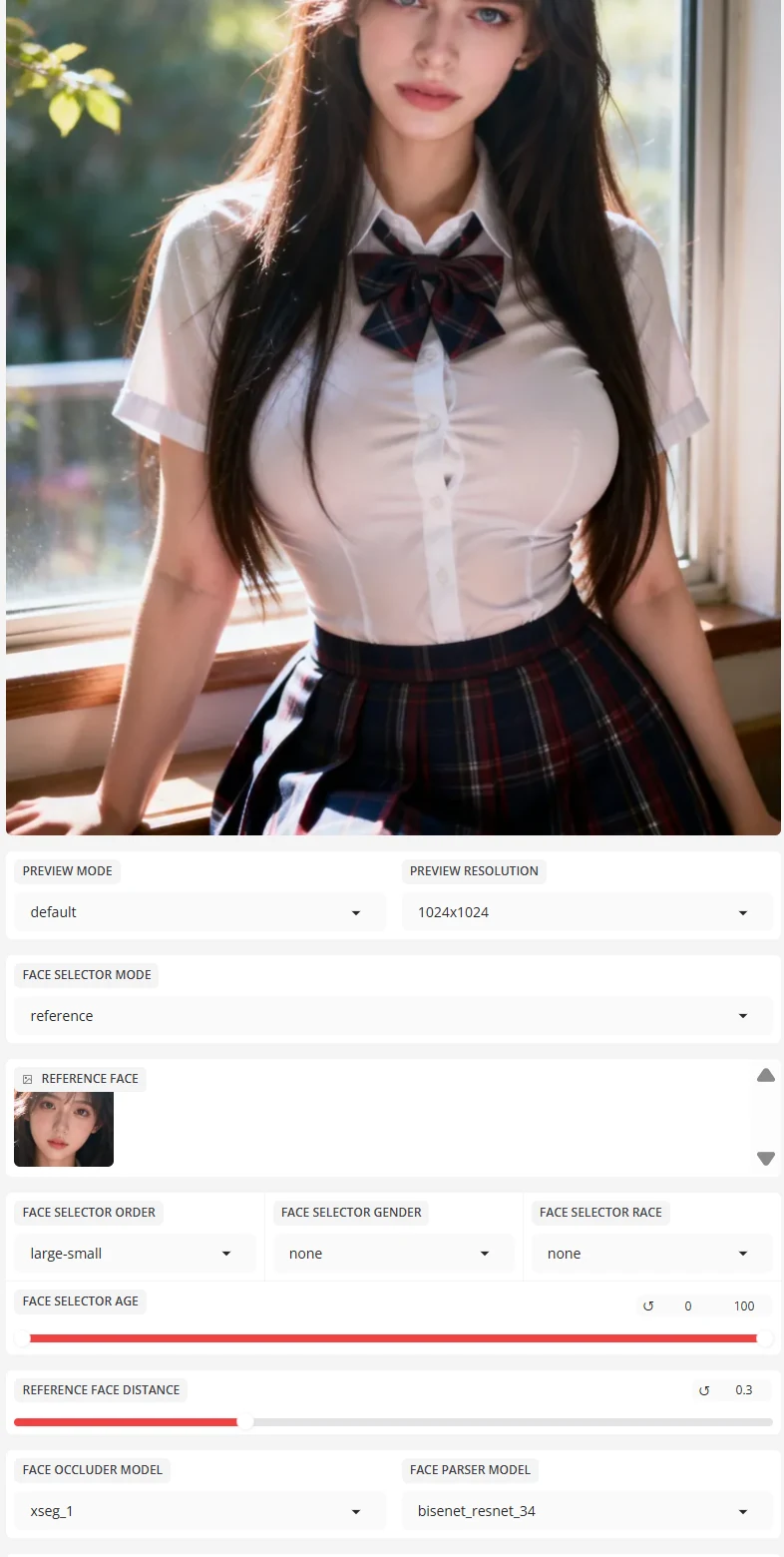
The Preview Frame: It simply means which frame you want to preview. It's like a video you can switch into a specific frame.
The FACE SELECTOR MODE and REFERENCE FACE: It uses the AI model to detect the face on your uploaded images/ videos and give you a reference of what face is going to be swapped.
If there are many people on one frame, there will be many reference faces.
One main problem is that you cannot choose which face to be swapped if there are many of them. You can only choose one face,
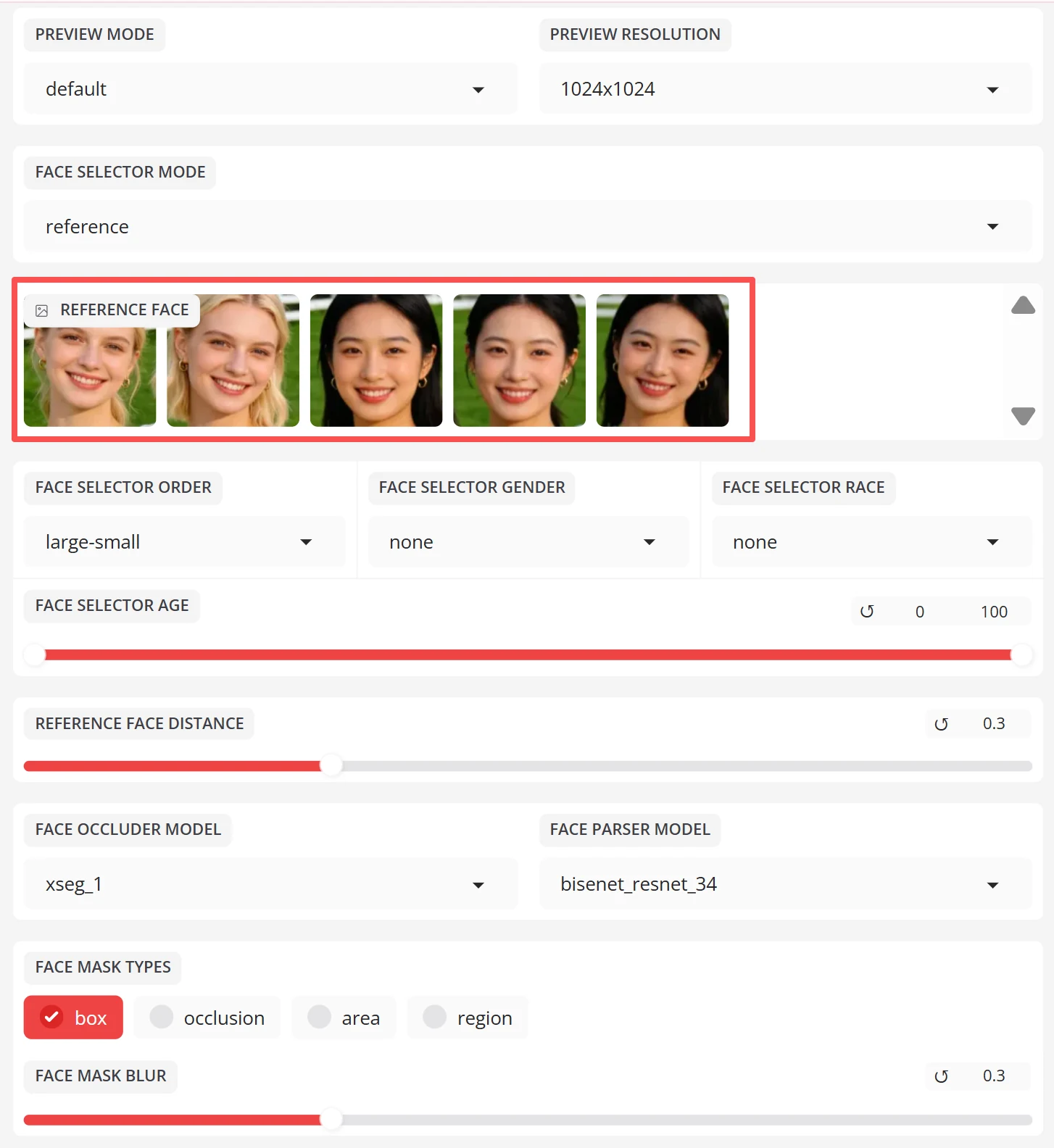
The options where you can choose between "Many", "One" and "Reference" seem pointless.
REFERENCE FACE DISTANCE: It shows how similar the reference face is to your source image. But it's just for your reference.
Below are the face detector settings for you to choose. For the FACE DETECTOR MODEL, well from my experience, I think it's better to set it as.
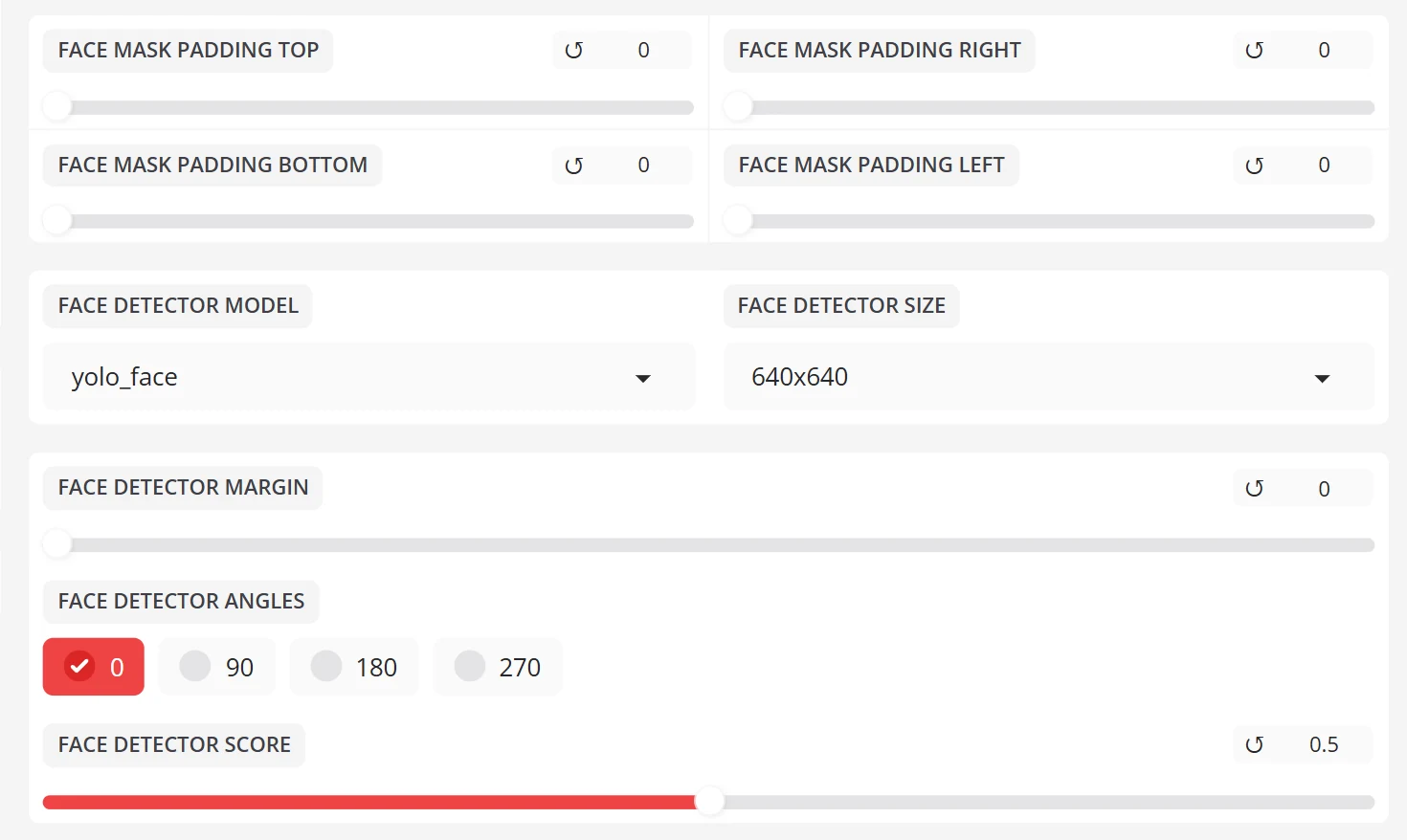
(3) More Operation Settings
Now if you are unsatisfied with output and settings on the right, you may explore more options and change the very basic settings on the left.
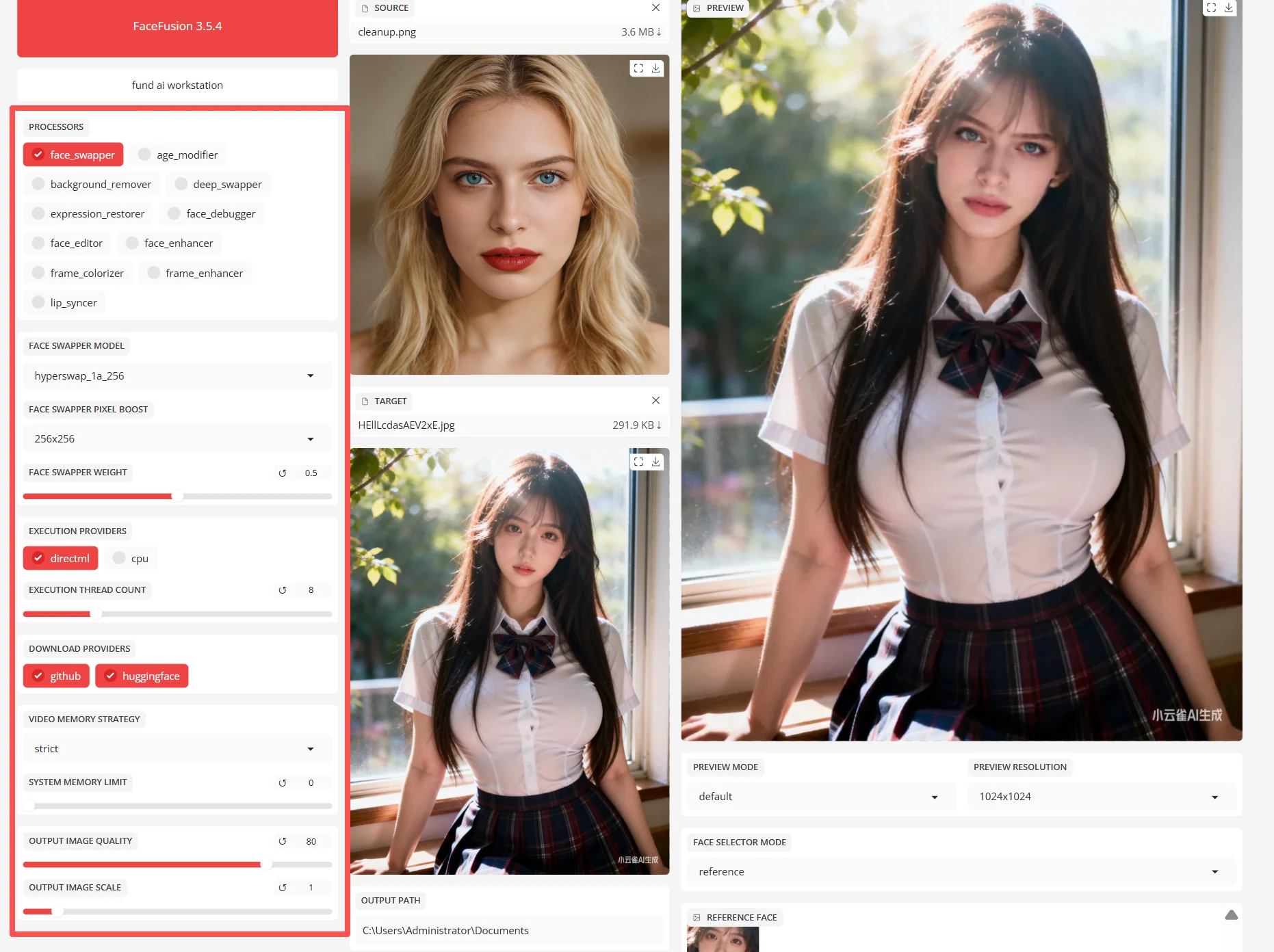
Let's check the Execution part first.
EXECUTION PROVIDER: Just remember to include both CPU and the other option depending on your device. If you're using a Mac, make sure you select core ml. If you're using Nvidia GPU, make sure you select Cuda as well. If you're on an AMD GPU machine, make sure you have the relative option selected.
Execution Thread account: it seems to depend on your own CPU storage. For example, if you have 16GB you can go with 16 threads.
EXECUTION QUEUE COUNT, VIDEO MEMORY STRATEGY AND SYSTEM MEMORY LIMIT can be kept as default.
The memory setting will use as much memory as it can otherwise if you need a certain amount of memory available for other tasks on your computer you can change it to suit your needs
(4) Advanced Settings of Models
Now, let's go back to the Frame processors
First of all, FaceFusion automatically helps you select the face_swapper as it's the main function. For the Swapper Model you can choose other models.
But like I said, most of the best settings of FaceFusion are defaults.
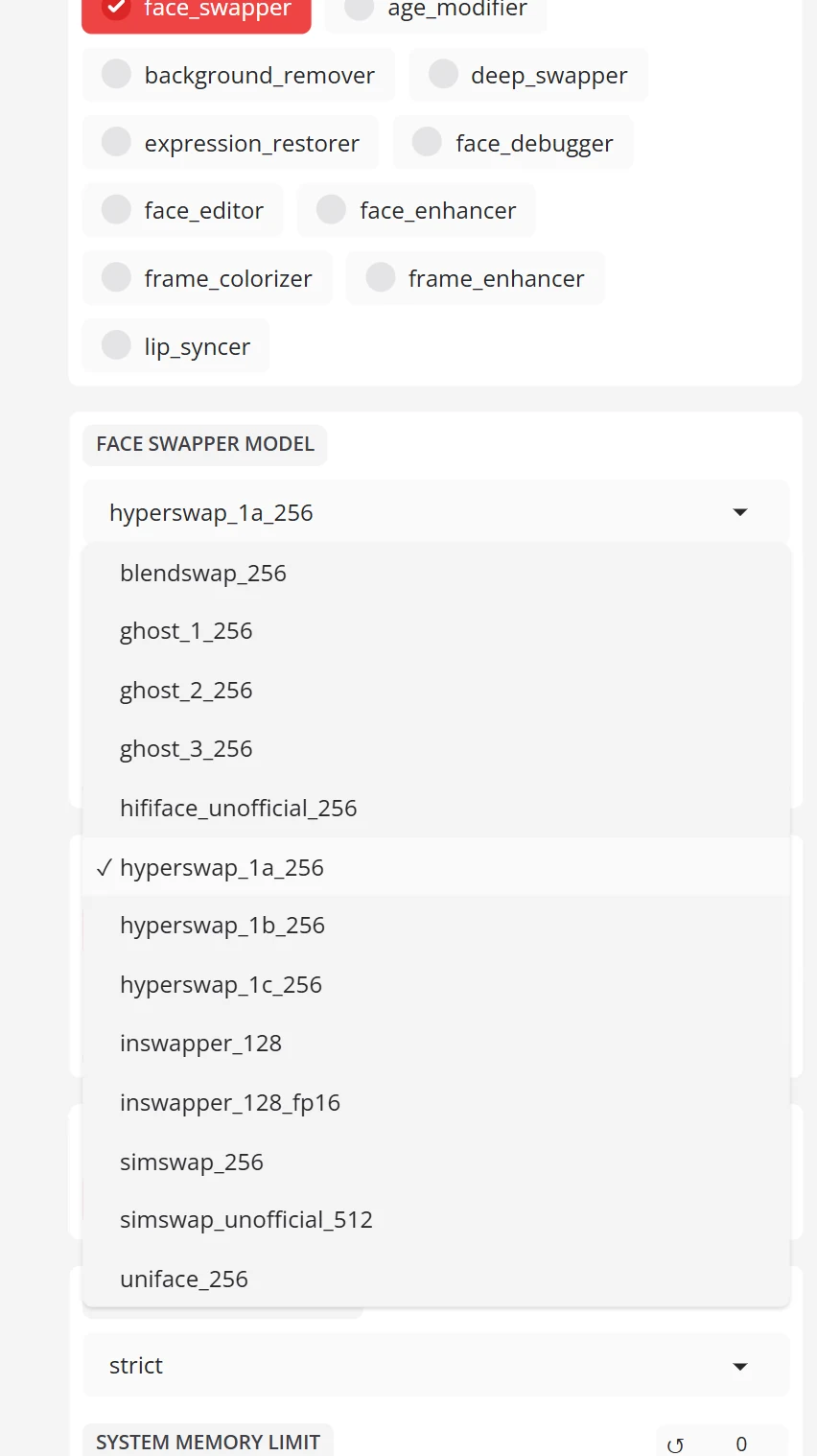
Let's look at the effect of this model.
The original photo and video:
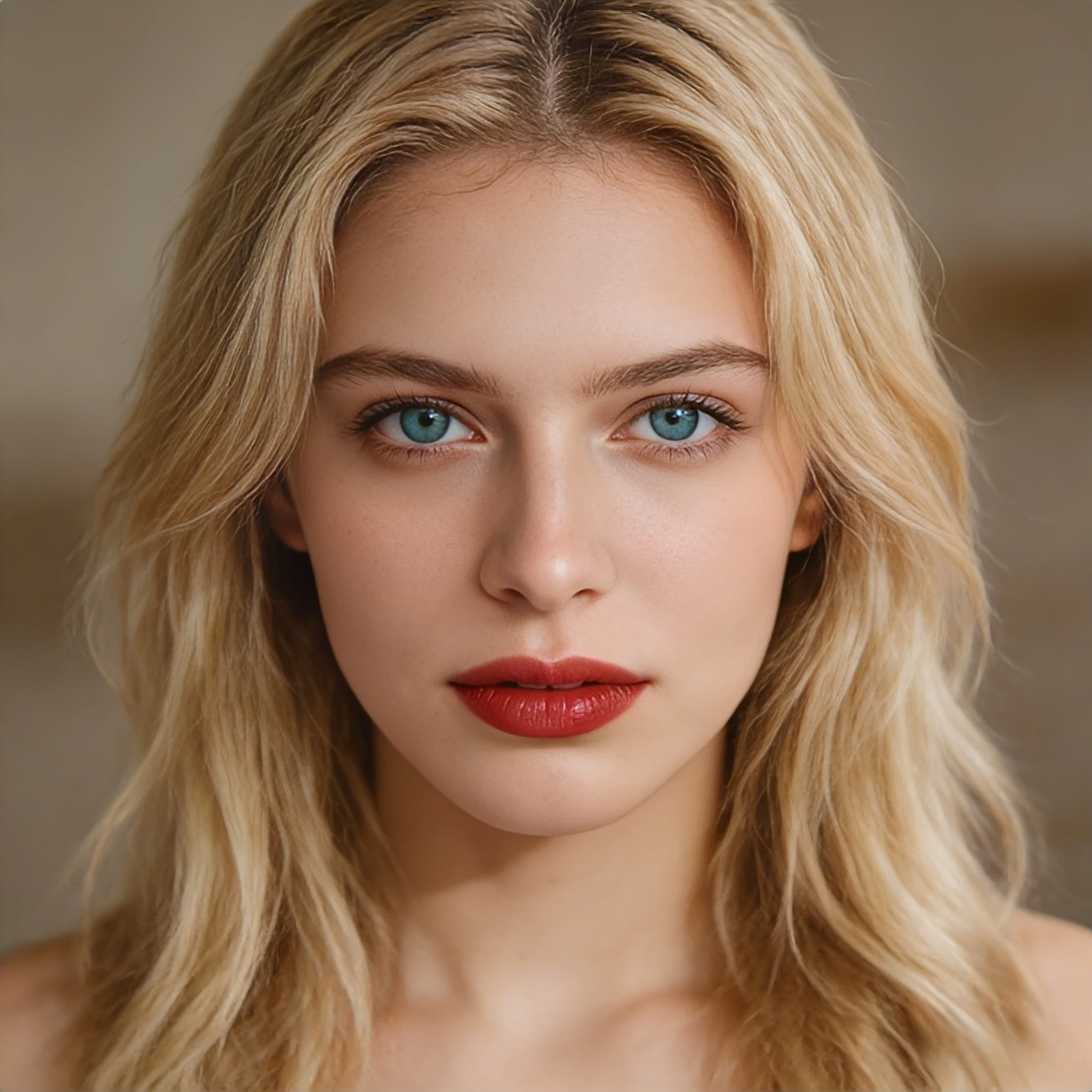
The face swap effect of hyperswapper_1a_256 model:
If you like to have videos with higher resolution, you may try the face_enhancer model to enhance the quality of the output.
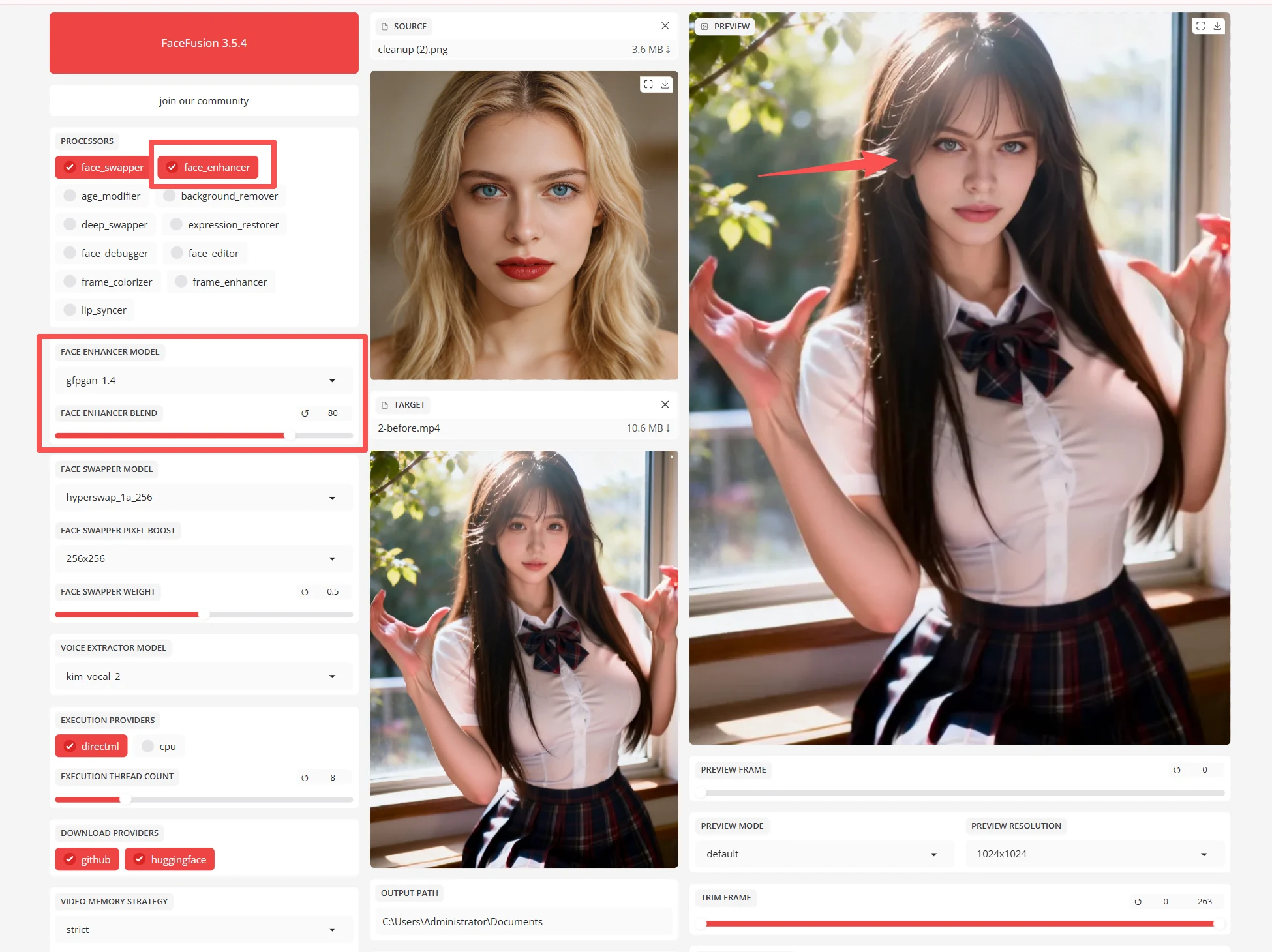
(But I just think it should be essential and necessary to at least keep the same level of resolution.)
After enhancement model with high resolution:
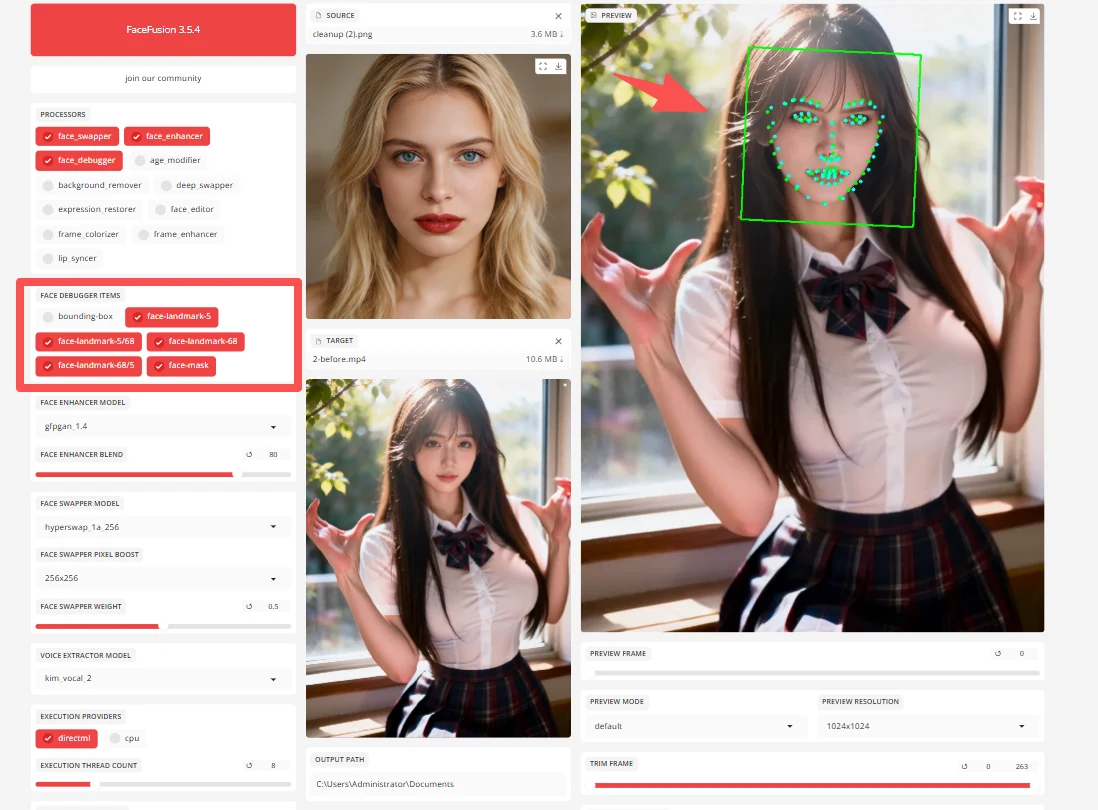
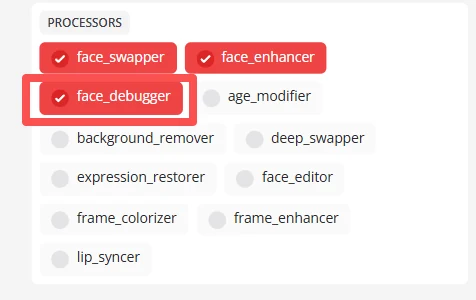
face_debugger model helps you control the effect area. After clicking it, there will be some options down below.
For example, the face mask will give you a box to control the effect area.
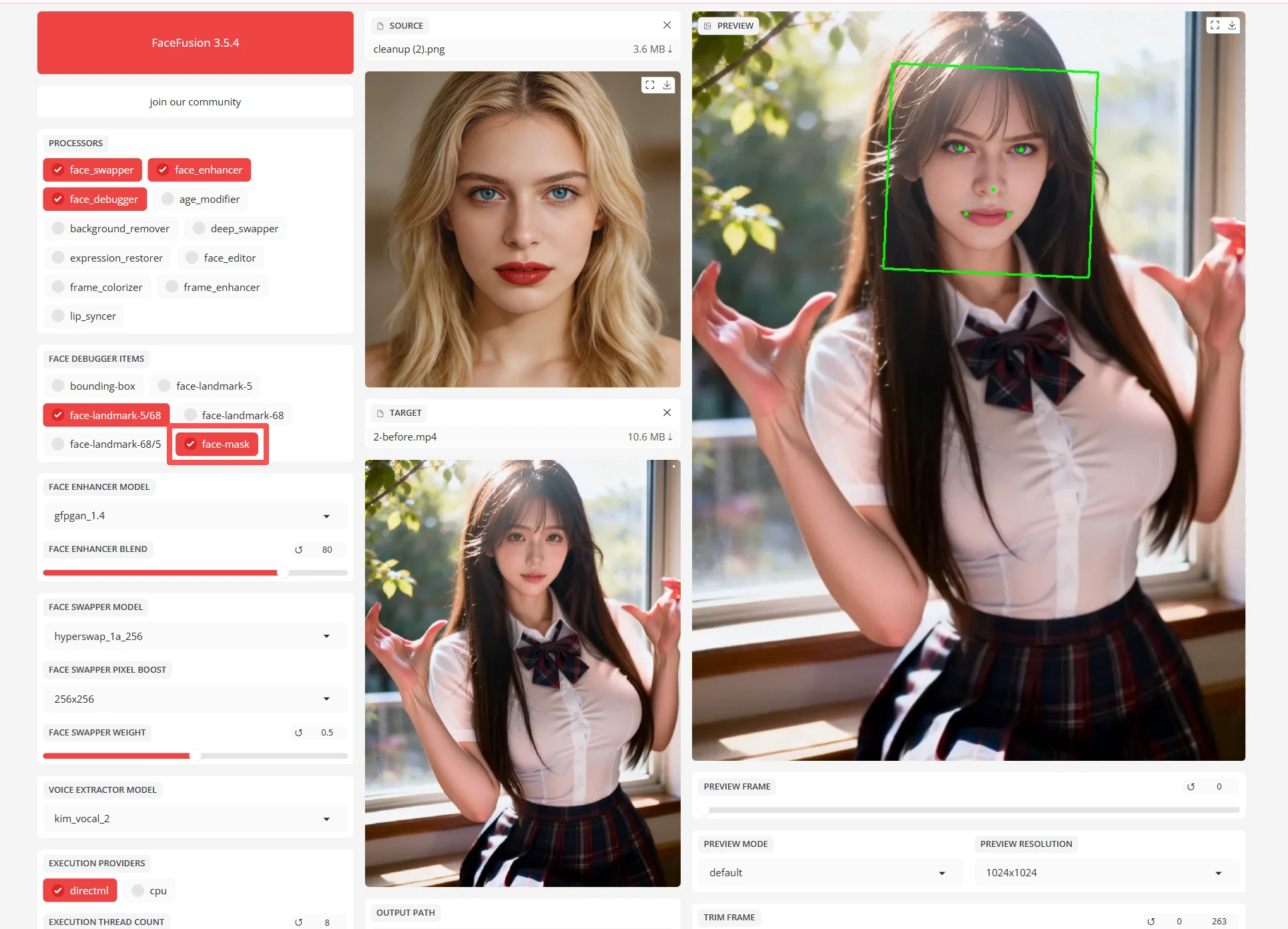
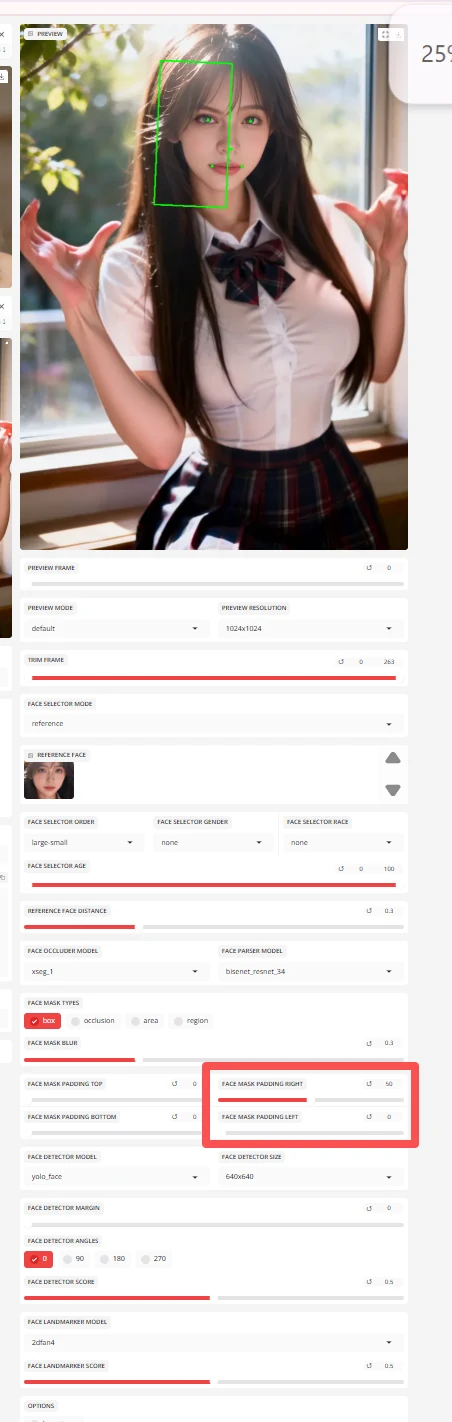
You may also change the type and region of this face-mask green box on the far right to control the effect area of face swapping.
(I really don't understand why they are put so far away on the right. It's so confusing.)
The 'landmarks' are some precise dots located on the character's face.
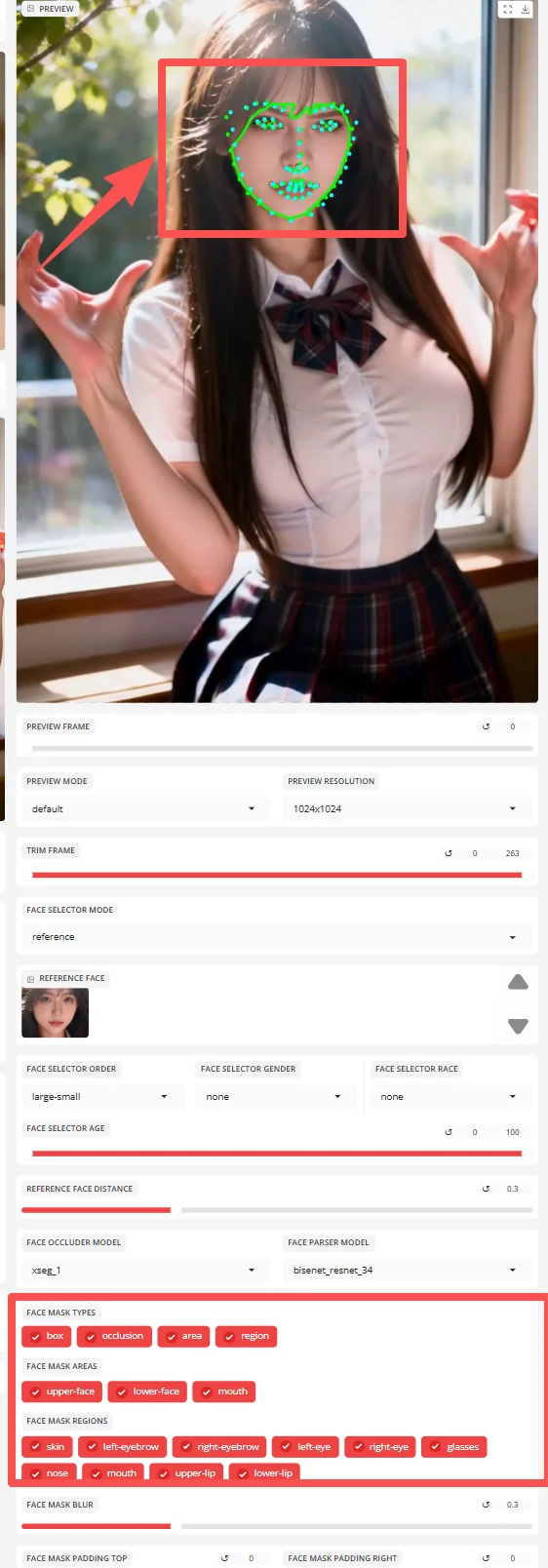
You may also click the occlusion and region on Face Mask Types and basically the effect area will be located more precisely on the swapping face.
It's easier for you to control the area of face-swapping precisely.
Many face swap models will have occlusion problems. But the face_debugger with more precise occlusion option can solve this problem (although there are still some flaws).
Before choosing 'occlusion':
After choosing 'occlusion':
The other models like frame_colorizer and frame_enhancer are image/video optimizers. The lip_syncer model will bring your photo characters alive by letting them be able to talk with your uploaded voice.
Other options:
- Keep FPS: The output will be the same frame rate as your input instead of converting it into default rate.
- Keep Temp: It will make it so that all of the images created for each output before it merges will be kept in the default folder therefore no longer temporary.
- Skip audio: No audio output.
- Skip-download: Do not download any model before using it. I don't recommend you to choose it.
Intriguing New Features of FaceFusion
Version 3.5.4 of FaceFusion has announced some intriguing new features.
Here are some of my favorite ones:
(1) More Natural Light & Expression with Higher Resolution after face swapping
Compared to the previous version, when you choose face swap and face enhancer, the new version significantly improves lighting, expression naturalness, and clarity.
Except for a few minor flaws, it's almost impossible to tell that the person has been face swapped.
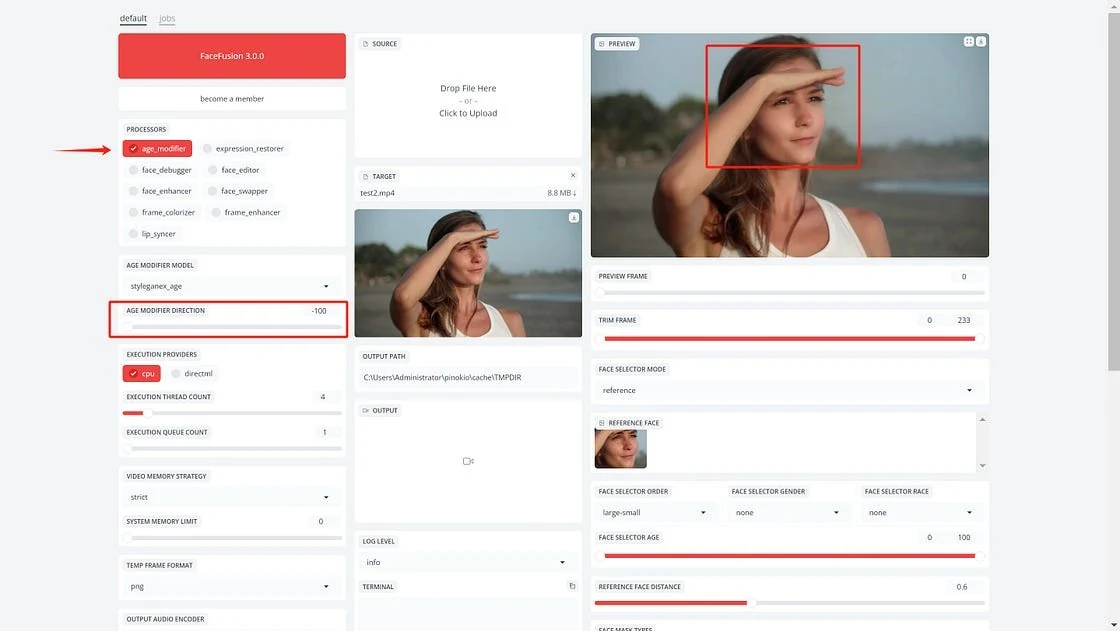
(2) Age Modifier
The new version offers an age modifier that allows you to change the age of the person in the target image or video.
*Tip*:
It's not recommended to perform face swapping and age modification simultaneously, as it may cause errors.
If you want to change the age of the person after face swapping, it's best to first complete the face swap, then upload the result as the target and perform the age modification.
(3) Expression and Head Adjustment
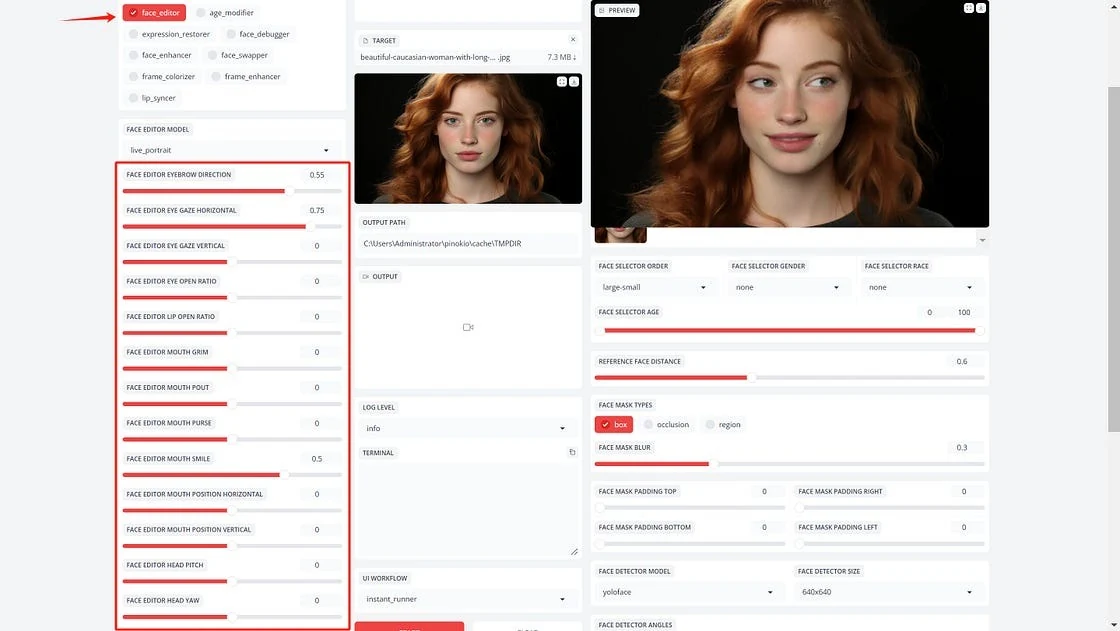
In the new version, you can also adjust facial expressions and head movements in FaceFusion.
Using the face editor model, you can modify settings such as the direction of the eyes, the size of the eyes' opening, the mouth's opening size, the extent of the smile, and the head's orientation, etc
(4) Expression Restore
Expression restore refers to a feature that enhances or corrects facial expressions in images.
This tool can adjust and improve the realism of facial expressions, making them look more natural and lifelike.
It's particularly useful for fixing issues in AI-generated images where facial expressions might appear distorted or unnatural
Good and Bad points of FaceFusion
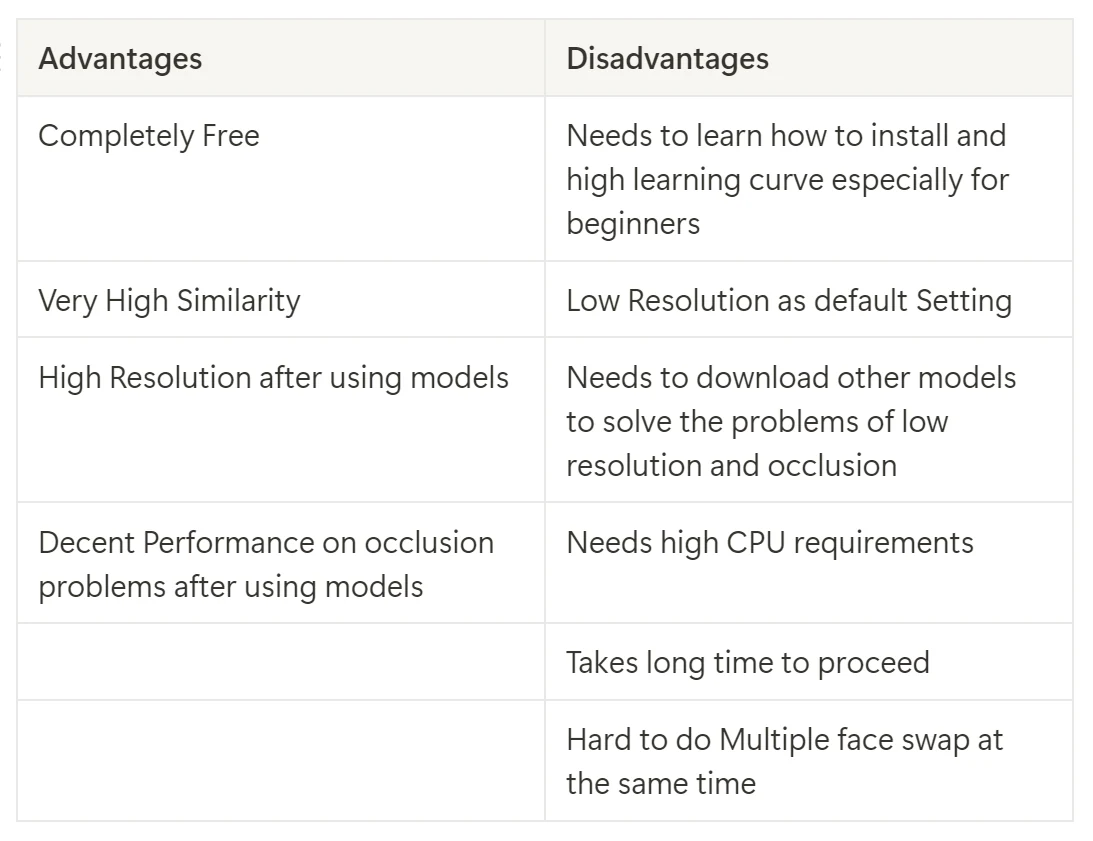
After long-time learning and trial, I may conclude advantages and disadvantages as below:
FaceFusion troubleshooting, Mac setup, and quality fixes
This section condenses the installation troubleshooting, common issues, Mac setup, and quality guide pages into one quick reference. Use it when FaceFusion will not install, runs slowly, fails to detect a face, or produces fake-looking swaps.
Installation troubleshooting
Most FaceFusion installation problems come from Python, dependency, GPU, or browser launch issues. Start with the environment before changing models or processors.
Check Python and install logs first
Use the Python version expected by your FaceFusion release, then review the terminal or Pinokio install log for the first failed package. Reinstalling blindly often repeats the same dependency error.
Fix GPU provider problems before running video jobs
If FaceFusion falls back to CPU, video processing becomes extremely slow. Confirm CUDA, CoreML, or the selected execution provider is available before testing long clips.
Restart from a clean environment when dependencies conflict
When ONNX Runtime, CUDA, or package versions conflict, a fresh environment is usually faster than patching a half-installed setup.
Mac and Apple Silicon notes
FaceFusion can run on Apple Silicon, but local Mac performance is limited compared with NVIDIA GPUs. For long videos, the online version or cloud GPU workflow is usually easier.
Use Apple Silicon compatible setup paths
On M1, M2, M3, and M4 Macs, install ARM64 dependencies and use CoreML where possible. Intel Macs are better served by the online FaceFusion workflow.
Do not expect Mac video speed to match RTX GPUs
Face swaps can work on Mac, but enhancers and long videos are slow. Keep tests short, then move heavier clips to a cloud GPU or FaceFusion online.
Camera and cache issues are Mac-specific checks
If webcam mode fails, verify macOS camera permissions for the terminal app. If CoreML errors appear after a macOS update, clear the FaceFusion cache and relaunch.
Common FaceFusion issues
When FaceFusion runs but the result is wrong, the cause is usually input quality, face detection, masking, or over-aggressive processors.
No face detected
Use a clear, front-facing source image with visible eyes, nose, and mouth. Avoid heavy blur, extreme angles, sunglasses, and cropped faces for the first test.
Wrong face swapped in multi-person media
Use preview frames and face selection before starting the final render. If needed, crop the target or use a cleaner frame to help FaceFusion identify the correct face.
Video flicker or inconsistent frames
Lower the difficulty first: test a shorter clip, avoid fast head turns, and make sure the source face has similar angle and lighting to the target video.
Quality and fake-looking swap fixes
Fake-looking results usually come from mismatched face shape, weak source photos, poor lighting, or enhancer settings that are too strong.
Match angle, expression, and lighting
Choose a source face that resembles the target pose. Similar lighting and facial angle matter more than using a very high-resolution but mismatched portrait.
Use enhancement carefully
Face enhancers can sharpen details, but too much enhancement creates plastic skin or an obvious AI look. Increase strength gradually and compare preview frames.
Keep the original face structure when realism matters
For natural swaps, preserve the target face shape and use models/settings that prioritize identity blending instead of aggressive transformation.
Final Thoughts
While open-source models are indeed free, the entire process from downloading to installing, configuring, and using them until you've mastered it can take a considerable amount of time.
If you're not familiar with coding and just want to try out the face-swapping feature as an ordinary user, I suggest either following my guide to give it a try yourself, or you might consider spending a little money on a third-party service.
Try Face Swap Online — No Code Needed
Skip the setup. Swap faces in photos and videos directly in your browser with FaceFusion.